
Roku streaming devices are popular for their affordability, ease of use, and access to thousands of apps. They offer a simple way to upgrade any TV, providing access to platforms like Netflix, Disney+, Prime Video, and numerous free channels.
Many users leave these devices plugged in all the time without considering the impact on performance, power, or longevity. Read on to discover what happens when a Roku stays plugged in 24/7 and how to get the most from your device.
How Roku handles continuous power
Roku streaming sticks are designed for constant power to facilitate automatic updates, with an Auto Power Savings mode activating after 20 minutes of inactivity.
This standby mode allows for continuous, low-bandwidth internet connectivity for system maintenance while ensuring immediate device responsiveness. More information is available on the Roku support website.
Users do not have to wait for a full boot cycle when turning on the TV or pressing a button on the remote. Regular updates help maintain security and add new features without interrupting daily streaming.
Little‑known fact: Many Roku streaming stick models are now designed to be powered directly from TV USB ports, reducing reliance on wall outlets for power.
Power consumption and energy use
Roku devices are exceptionally energy-efficient. Roku streaming sticks typically consume only 2W to 3.5W while active, whereas the Roku Ultra uses approximately 4.5W during 4K streaming. While the Ultra’s power adapter is rated for up to 18 watts, the device itself rarely draws a fraction of that capacity during normal operation.
Leaving a Roku plugged in does not significantly impact electricity bills. Devices like these are designed for continuous connectivity, and the small power draw is largely negligible, especially when compared with other appliances in the home.
Software performance and cache management
Continuous use can lead to temporary slowdowns if cache files accumulate over time. Roku OS stores temporary data to improve performance, but outdated or corrupted files may gradually slow the device. Rebooting the streaming stick clears these files and resets processes, ensuring smoother operation.
Power cycling a Roku stick occasionally is beneficial. A simple monthly reboot allows cache clearance, prevents potential glitches, and provides an opportunity to check ports and clean dust from the device.
Once a patch is released, your device will usually download and install it in the background within a day or two of its availability.
Little‑known fact: Roku typically rolls out two major OS updates each year to introduce new features. Between these milestones, the system automatically checks for minor patches every 24 to 36 hours.
Heat and environmental considerations
Although Roku devices generate minimal heat, leaving them plugged in continuously can create warm conditions, particularly in enclosed spaces with limited airflow. High ambient temperatures or direct sunlight can exacerbate heat accumulation, which may reduce long-term device lifespan.
Dust is another factor that can affect performance. Dust acts as an insulator that can prevent your Roku from dissipating heat, potentially leading to overheating or performance throttling.
When and how should you unplug a Roku device?
Roku recommends unplugging and letting the device cool for at least 10 minutes if it is overheating.
Unplugging also provides a chance to inspect HDMI and USB connections for dust or bent pins. Careful handling ensures the device is not damaged during maintenance, maintaining both performance and safety.
Roku features that support continuous use
Roku devices are built for always-on use. When enabled, auto power savings can reduce power use after a period of inactivity, while features like Backdrops can display personal photos on screen. Roku devices also check for software updates automatically, helping keep the system current without much user intervention.
Streaming sticks rely on consistent internet connectivity to function correctly. Even while idling, the device can perform background updates, ensuring users receive new features and security patches without delaying viewing sessions.
Little‑known fact: Upcoming software updates for Roku streaming sticks include new AI‑powered voice search and expanded features like live sports scores and reminders to enhance interaction without affecting idle power use.
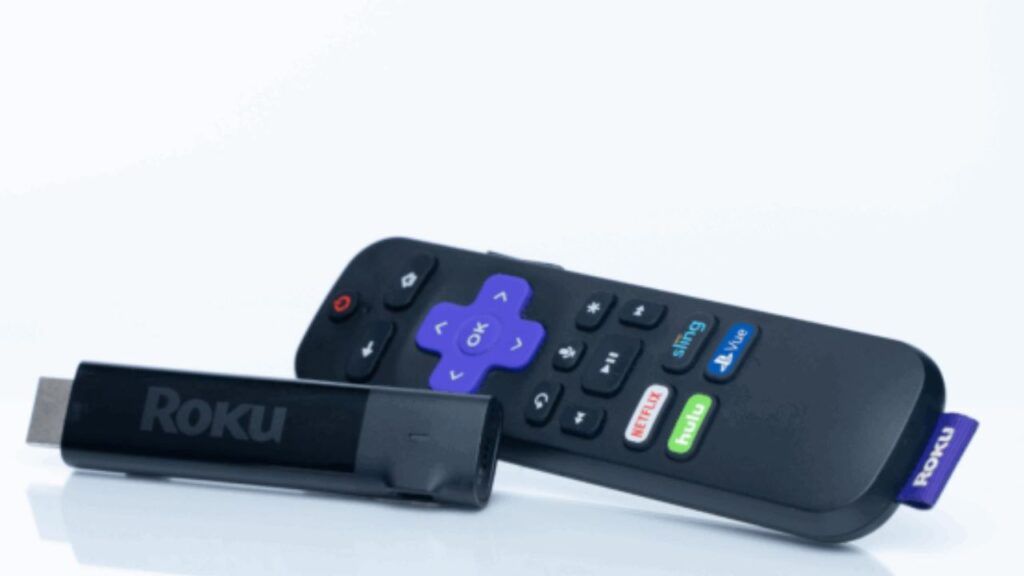
Compatibility and device selection
Selecting the right Roku stick depends on the TV and the viewing experience desired. HD models are sufficient for non-4K TVs, while 4K sticks with HDR support are ideal for higher-quality displays.
Users should also ensure HDMI ports support HDCP 2.2 to enable 4K streaming from services like Netflix or Prime Video. Older TVs may require external power for the stick via a USB wall adapter. This ensures consistent operation and avoids issues that can arise when relying on the TV’s USB power output.
Storage limitations and app management
Roku sticks have limited internal storage, typically 512 MB to 1 GB of RAM and up to 4 GB of storage. This space is used for apps and system data, and filling it can lead to errors such as insufficient memory. Periodic removal of unused apps or restarting the device helps maintain optimal performance.
The stick is designed solely for streaming and cannot download or store large files like a USB drive. Users are restricted to apps available through Roku’s Channel Store, with limited third-party support compared with other platforms like Fire TV or Android TV.
Privacy and data collection
Roku devices collect viewing habits and usage data by default to provide personalized recommendations and targeted advertisements. While privacy controls, such as limiting ad tracking or disabling the smart TV experience, are available, some data collection is inherent to device operation.
Users concerned about privacy should adjust settings to limit data sharing. This reduces targeted advertising and tracking, although it does not eliminate it completely.

TL;DR
- Roku devices are designed to stay powered continuously and enter low-power standby after 20 minutes of inactivity.
- Continuous operation allows automatic updates and immediate readiness for streaming.Users concerned about privacy should
- Heat accumulation and dust can impact device longevity; regular maintenance is advised.
- Privacy settings can reduce tracking, but some data collection is unavoidable.
- Selecting a compatible stick ensures optimal streaming quality and performance. Samsung’s current OLED deals make a compelling case.
This article was made with AI assistance and human editing.
If you liked this, you might also like:
Trending Products

iRobot Roomba Plus 405 (G181) 2in1 ...

Tipdiy Robot Vacuum and Mop Combo,4...

iRobot Roomba 104 2in1 Vacuum &...

Tikom Robot Vacuum and Mop Cleaner ...

ILIFE Robot Vacuum

T2280+T2108

ILIFE V5s Pro Robot Vacuum and Mop ...

T2353111-T2126121

Lefant Robot Vacuum Cleaner M210, W...