
Most people rarely think about the tiny blinking lights next to the Ethernet cable on the back of a router, modem, or computer. They quietly flicker in the background and usually go unnoticed unless the internet suddenly stops working.
Those small LEDs are more important than they appear. They function as a built-in diagnostic system that constantly communicates information about connection status, speed, and activity across the network.
Understanding what these lights mean can quickly reveal whether a connection is healthy, slow, or completely disconnected. For anyone trying to diagnose network problems, the LED indicators often provide the first and fastest clue.
A closer look at what each color and blinking pattern represents can reveal exactly what the network is trying to communicate.
Why do Ethernet ports have indicator lights?
Ethernet ports include LED indicators that show the status of the physical network connection. These lights act as a visual signal that helps both everyday users and network technicians understand what is happening inside the network.
Instead of opening software tools or digging through system settings, the LEDs often provide instant feedback. A quick glance can reveal whether a cable is connected, whether the network link is active, and whether data is moving across the connection.
Many Ethernet ports include one or two lights. One LED usually represents the link status, while another indicates network activity.
Some devices combine these functions into a single LED that changes color or blinking behavior. Others use two separate lights to show different pieces of information.
Green lights usually mean the connection is healthy
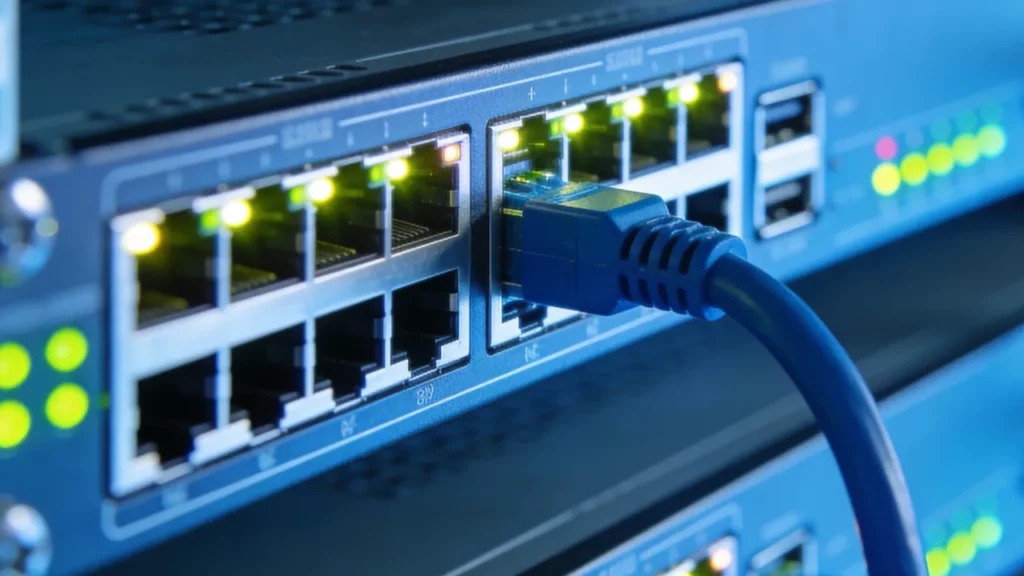
The most common color seen on an Ethernet port is green. A solid green light usually means that a stable connection has been established between two devices.
Some devices use green to indicate a faster speed or a valid link, but others use green for 10 Mb/s, 100 Mb/s, or maximum-port-speed states, depending on the product.
When the green light begins blinking, the meaning changes slightly. The blinking usually indicates network activity rather than connection status.
Data packets are moving through the cable whenever the light flickers. Activities such as loading a webpage, streaming video, or transferring files can cause the LED to blink rapidly.
Amber or orange lights can signal slower speeds
Another color commonly found on Ethernet ports is amber. Depending on the device, the light may appear yellow or orange rather than deep amber.
Amber or orange can mean a lower speed on some devices, but on others it can mean 1 Gb/s, STP blocked, admin-down, or PoE-related status.
One common reason for this behavior is an outdated Ethernet cable. Older cables may not support modern speeds, which forces the network to fall back to a slower connection.
Configuration mismatches can also cause amber lights. If one device supports gigabit speeds but the other device only supports slower networking standards, the connection automatically adjusts to the lower speed.
On enterprise networking hardware, amber LEDs can sometimes signal configuration warnings. For example, the light might indicate a problem related to Power over Ethernet, where the device is attempting to supply electrical power through the network cable.
Red lights or no light often indicate a connection problem
While green and amber lights typically represent functioning connections, red lights often indicate a problem. A red Ethernet LED usually signals a fault or an interrupted link.
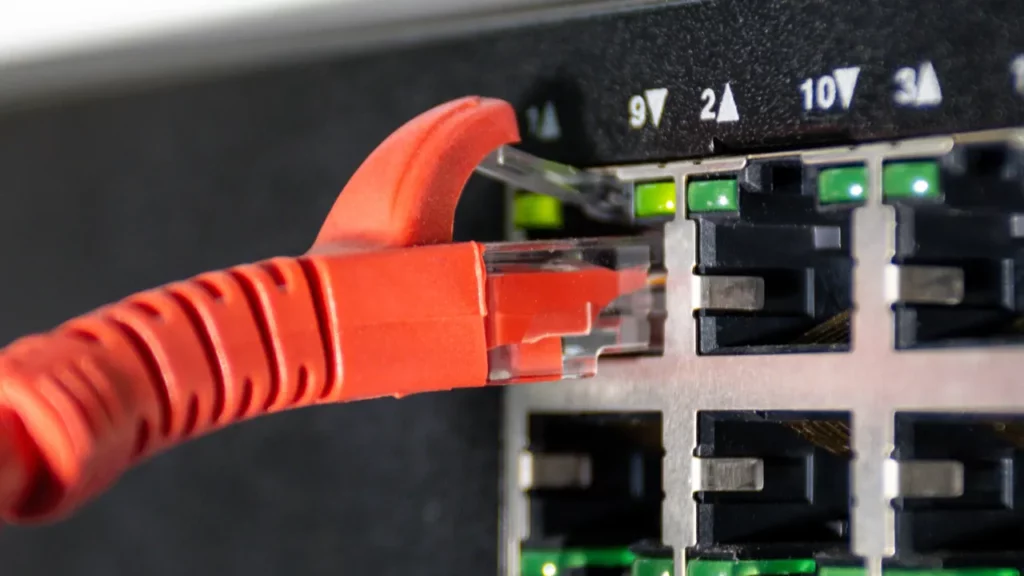
In many cases, there may not be a red light at all. Instead, the port simply remains dark with no LED activity.
A dark Ethernet port usually means the device cannot detect a connection. The cable may not be fully inserted, the connected device may be turned off, or the network port itself could be disabled.
Loose or damaged cables are another common cause of dark ports. Checking the physical connection is often the fastest way to resolve the issue.
Blinking patterns reveal network activity
The blinking pattern on an Ethernet port can still tell you something useful at a glance. In most cases, a blinking LED simply means data is moving through the connection, even if the color stays the same.
A slower blink may reflect light background activity, while faster flickering can happen when the connection is handling more traffic. Still, blink speed is not a universal measure of data volume, and the exact meaning can vary by device and manufacturer.
Enterprise switches sometimes display more complex LED behavior. Alternating colors or rapid blinking patterns may indicate diagnostics, system checks, or network faults.
For network administrators managing dozens of ports at once, these lights provide a quick visual overview of network health. A simple glance across a row of switches can reveal which connections are active and which ones may require attention.
Not all routers use the same color system
Although green, amber, and red are common indicator colors, networking hardware does not follow a universal standard. Different manufacturers sometimes assign slightly different meanings to the same colors.
One router might use amber to indicate slower speeds, while another might use it to represent a gigabit connection. The interpretation can vary depending on the model and firmware.
Some devices also include two LEDs per Ethernet port. One light may represent the link status, while the second LED indicates activity or speed.
Because of these variations, the most reliable way to understand the lights is to check the documentation provided by the device manufacturer. However, the general patterns described above apply to most consumer networking equipment.
LEDs are useful for fast troubleshooting, but their exact colors and patterns are device-specific. Use the product manual when you need a precise interpretation.
How Ethernet lights help diagnose network problems
Ethernet LEDs are often the fastest troubleshooting tool available on a network device. A quick look at the lights can immediately narrow down the source of a problem.
A solid link light with occasional blinking usually suggests the Ethernet connection is physically active and data is moving across the cable. That often means the port, cable, and connected device are at least communicating at the hardware level.
However, that does not guarantee the rest of the network is working properly. Problems with settings, drivers, IP assignment, switching, or internet access can still exist even when the Ethernet light appears normal.
An amber light where a green one is expected may point to a slower link speed. This could indicate a cable limitation, hardware mismatch, or configuration problem.
If the port shows no light at all, the issue is usually physical. The cable may be disconnected, damaged, or connected to a powered-off device.
Network technicians often rely on these indicators before running advanced diagnostics. The LEDs provide an immediate snapshot of network health without requiring additional tools.
Little‑known fact: If Wake-on-LAN is enabled, an Ethernet light can stay on even after a computer is shut down, because the network adapter still needs standby power to listen for a wake signal.
TL;DR
- Ethernet port lights act as visual indicators that show the health and activity of a network connection.
- A solid green light usually means a stable Ethernet link is established.
- A blinking green light indicates active data transfer across the network cable.
- Amber or orange lights often signal slower speeds or configuration mismatches between devices.
- In enterprise networking gear, amber lights can sometimes indicate issues with Power over Ethernet connections.
- No light commonly indicates no link, a disconnected cable, a powered-off peer, or a disabled port.
- Blinking patterns can also show how much data is moving across the connection.
- Ethernet LED indicators help quickly diagnose problems without opening software tools or router settings.
This article was made with AI assistance and human editing.
If you liked this, you might also like:
Trending Products

iRobot Roomba Plus 405 (G181) 2in1 ...

Tipdiy Robot Vacuum and Mop Combo,4...

iRobot Roomba 104 2in1 Vacuum &...

Tikom Robot Vacuum and Mop Cleaner ...

ILIFE Robot Vacuum

T2280+T2108

ILIFE V5s Pro Robot Vacuum and Mop ...

T2353111-T2126121

Lefant Robot Vacuum Cleaner M210, W...