
Mid-boss fight, your screen cuts to black. The controller is still vibrating, the audio is still pumping, but all you see is darkness. It’s every gamer’s nightmare: the dreaded PS5 black screen.
Sometimes it happens during high-octane moments in AAA titles, other times randomly while navigating menus. The culprit is usually an HDMI handshake issue, system setting, or overheating, but don’t panic. With the right steps, you can fix this problem and prevent it from ruining your sessions.
If you’ve been frantically Googling solutions, you’re not alone. Many PS5 owners have experienced sudden blackouts. The good news is that most of these problems have practical, proven fixes.
This guide walks through the causes, solutions, and preventive measures to keep your gaming uninterrupted.
Understand why black screens happen
The PS5 doesn’t just send a video signal to your TV; it negotiates a connection through HDMI using a process called EDID, or Extended Display Identification Data.
This handshake determines the resolution, refresh rate, and color depth. When the process fails, your screen can go black, even though audio continues to play.
- Common technical culprits include:
- Damaged or corroded HDMI cable pins
- Loose or dusty TV HDMI ports
- Firmware bugs in your console or TV
- Voltage instability or timing issues in the console’s processor
Settings like Deep Color or Enhanced HDMI can push the negotiation beyond your TV’s limits. Think of it as asking a compact car to tow a small trailer: technically possible, occasionally disastrous.
Check and replace your HDMI cable
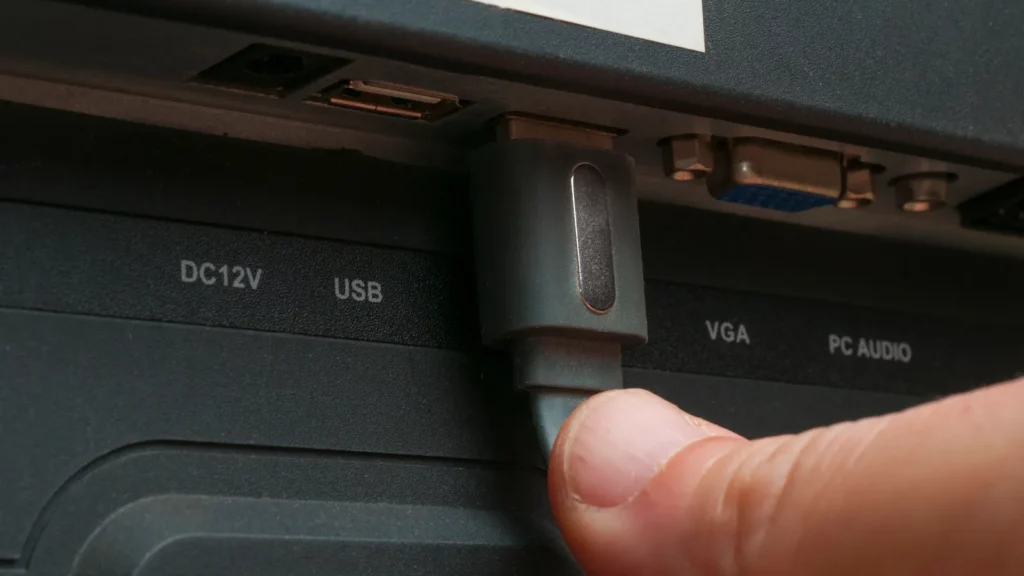
Before diving into complex solutions, start simple.
Inspect your HDMI cable for physical damage: bent connectors, fraying, or exposed wires. Even certified Ultra High Speed cables can fail over time due to corrosion or repeated plugging and unplugging.
Next, try connecting the cable to a different HDMI port on your TV. Some ports are better at handling high-bandwidth signals than others. If you have a spare cable, test with it. If the black screen disappears, your original cable was likely the problem.
Disable deep color and enhanced HDMI
Many TVs include options for Deep Color or Enhanced HDMI formats, which expand color depth and image quality.
While these features look great on paper, they can destabilize the HDMI handshake with the PS5.
- To adjust these settings:
- Navigate to your TV’s picture or HDMI settings.
- Turn off “Deep Color” or “Enhanced HDMI” for the port connected to your PS5.
- Test your console to see if the black screen issue resolves.
You may lose a bit of color richness, but in most cases, stability is worth the trade-off.
Power cycle your TV and PS5
Some black screen issues stem from lingering electrical states in your TV or console. Power cycling can reset everything and clear handshake glitches:
- Turn off your PS5 and TV.
- Unplug both from the wall for at least 30 seconds.
- Plug them back in and power on.
This simple step has solved black screen problems for many users and is often faster than replacing cables or updating firmware.
Check your PS5’s rest mode settings
Rest Mode is convenient for charging controllers and downloading updates while the console is off. Unfortunately, it can also contribute to black screen problems, especially if the system fails to wake correctly.
To prevent Rest Mode from interfering:
- Open PS5 Settings.
- Go to Power Saving → Rest Mode.
- Select “Don’t Put in Rest Mode.”
Disabling this feature might be a minor inconvenience, but it often restores stability during gaming sessions.
Update system software and firmware
Firmware bugs can trigger random black screens. Both the PS5 and your TV periodically release updates that address these issues.
Keeping everything updated is one of the easiest ways to prevent HDMI and system errors.
On the PS5:
- Go to Settings → System → System Software.
- Select “System Software Update.”
- Follow the prompts to ensure your console is running the latest version.
Check your TV’s manufacturer website or on-screen menu for updates as well.
Clean and maintain your console

Dust buildup can cause your PS5 to overheat, especially during graphics-heavy games. Overheating can lead to automatic shutdowns or temporary black screens. Cleaning your console every six months can prevent this.
Here’s a step-by-step approach:
- Remove the PS5 stand and faceplates.
- Use compressed air or a camera dust blower to clean vents.
- Remove the plastic intake fin covering the fan.
- Unscrew and carefully lift out the fan assembly using a T8 Torx screwdriver.
- Clean fan blades and interior surfaces with a soft brush or cloth.
- Reassemble the fan, intake fin, faceplates, and stand.
If your console continues to overheat despite cleaning, consider an aftermarket cooling accessory. Models like the SCRY Arctic PS5 cooler increase airflow and keep temperatures down, although at the cost of additional fan noise.
Adjust video output settings for compatibility
If you recently switched TVs, your PS5’s resolution or HDR settings might exceed what the new display can handle. To fix this:
- Connect your PS5 to a working display.
- Go to Settings → Screen and Video → Video Output → Resolution.
- Lock the resolution at a lower setting compatible with your older TV.
- Disable Automatic Low Latency Mode and HDR if necessary.
This adjustment ensures that even older or less capable TVs display your games correctly.
Consider power supply and hardware issues
If none of the above steps work, your PS5 might be facing a hardware problem. Common culprits include a faulty motherboard, unstable power supply, or damaged HDMI port.
- Check the power cord for visible damage.
- Ensure it’s firmly connected to both the PS5 and the wall outlet.
- If the console is under warranty, contact Sony Support for repair or replacement.
For those outside the warranty period, third-party repair shops or DIY parts replacement are options, though they carry risk. A refurbished PS5 can also be a cost-effective alternative, sometimes available for as low as $350 from Sony.
Prevent future black screens
Once your PS5 is running smoothly, preventive measures can help maintain stability:
- Use high-quality, certified HDMI cables.
- Clean HDMI ports and console vents regularly.
- Avoid frequent plugging and unplugging of cables.
- Keep firmware and software up to date.
- Limit prolonged gaming in extremely hot environments.
With consistent maintenance and attention to settings, black screen interruptions can be minimized or eliminated entirely.
Getting back to uninterrupted gameplay
There’s nothing worse than a blackout during a crucial gaming moment, but most PS5 black screen issues have simple fixes.
From HDMI cable checks and firmware updates to dust cleaning and rest mode adjustments, there’s a step for every type of problem.
In rare cases, hardware repairs may be necessary, but for the majority of gamers, following these guidelines will restore stability and ensure you can enjoy your console without frustration.
By understanding the technical underpinnings of HDMI handshakes, EDID negotiation, and heat management, you can tackle issues proactively instead of reacting in panic. Your PS5 isn’t broken; it’s just a high-performance machine that occasionally needs a little TLC.
Dive deeper into your PS5’s settings, maintain your hardware, and keep an eye on updates. With these strategies, black screens will become a rare nuisance rather than a gaming-ruining event.
Your next mid-boss fight should be intense for all the right reasons, not because your display suddenly gave up on you.
Recommended:
This article was made with AI assistance and human editing.
Trending Products

iRobot Roomba Plus 405 (G181) 2in1 ...

Tipdiy Robot Vacuum and Mop Combo,4...

iRobot Roomba 104 2in1 Vacuum &...

Tikom Robot Vacuum and Mop Cleaner ...

ILIFE Robot Vacuum

T2280+T2108

ILIFE V5s Pro Robot Vacuum and Mop ...

T2353111-T2126121

Lefant Robot Vacuum Cleaner M210, W...