
Many Fire TV Stick owners assume sluggish menus mean their streaming device is failing. The reality is usually less dramatic because everyday use gradually increases the workload on the small streaming computer.
The device is competing with installed apps, cached data, background processes, wireless conditions, and Fire OS interface features. A few overlooked settings can make an older Fire TV Stick feel slow without requiring a replacement.
Why does a Fire TV Stick become slow over time?
A Fire TV Stick has limited processing power, memory, and storage compared with larger computers. Like other compact devices, it has a fixed performance budget that can shrink as software demands increase over months or years.
Apps become larger after updates, temporary files accumulate, and the operating system manages more services behind the scenes. The result can be slower navigation, delayed responses, and longer loading times across the interface.
The slowdown does not always mean the hardware has developed a fault. Many performance complaints stem from normal resource limitations that become noticeable when the device has less storage and memory available.
The hidden workload inside Fire OS
Fire OS is designed to make streaming convenient, but the home screen does more than display app icons. It loads recommendations, previews, promotional content, and other features that require system resources.
This content-rich design can create extra activity before users even open a streaming service. Older Fire TV Stick models may feel this impact more because their processors and memory have less room for additional tasks.
The same interface that helps users discover movies and shows can also contribute to a slower experience. A simple launcher would demand fewer resources, but Fire TV prioritizes a richer browsing environment.
Is autoplay making the problem worse?
One overlooked cause of Fire TV Stick lag is featured-content autoplay. The home screen can automatically load preview videos and audio, creating additional background activity while users are deciding what to watch.
Turning off autoplay for video and audio can reduce unnecessary workload. The change may be especially noticeable on older devices or systems with many apps already installed.
This setting highlights why some owners mistakenly blame hardware. The Fire TV Stick may still work properly, but the interface is using resources for features that are not essential.
Storage and cache can quietly affect performance
A Fire TV Stick relies on flash storage, which has a limited capacity compared to that of computers and smartphones. When storage becomes crowded, the device has less room for temporary files and smooth operation.
Streaming apps often cache data to speed up future use. However, those files can grow, contributing to a heavier software environment that slows navigation and app launches.
Clearing app caches can help remove unnecessary stored data. Users can find these options through Settings, Applications, and Manage Installed Applications to review which apps are consuming space.
Little-known fact: Most Fire TV Stick models only have 8GB of onboard storage, and after the OS and preinstalled apps load, roughly 5.5GB is actually usable.
Why background apps matter
Some apps continue running processes after users leave them. These background activities can consume memory and processing resources, leaving fewer available resources for the interface or active streaming.
Force-stopping unnecessary apps can improve responsiveness, especially when several services have been installed. Removing rarely used apps can also reduce background activity and free up storage space.
This maintenance approach is similar to managing a smartphone. A Fire TV Stick is small, but it still needs occasional housekeeping to maintain reliable performance.
Could Wi-Fi be the real problem?
Not every Fire TV Stick issue comes from the device itself. Weak wireless signals, router placement, and network congestion can create buffering that feels like hardware lag.
Many homes still rely on crowded 2.4 GHz wireless networks, where interference from nearby devices can reduce performance. A stronger 5 GHz connection may provide better results when the router and Fire TV Stick support it.
Users should separate interface problems from streaming problems. A slow menu points toward device resources, while repeated buffering often indicates network quality issues rather than a failing streaming stick.
Simple fixes worth trying first
Restarting a Fire TV Stick remains one of the easiest troubleshooting steps. A power cycle can clear temporary glitches and refresh system processes that have become unstable during extended use.
Checking for Fire OS updates is another useful step. Updates can include performance improvements, bug fixes, and compatibility changes that help maintain smoother operation.
Users should also regularly review installed applications. Removing unused services reduces storage pressure and may limit background activity that slows performance.
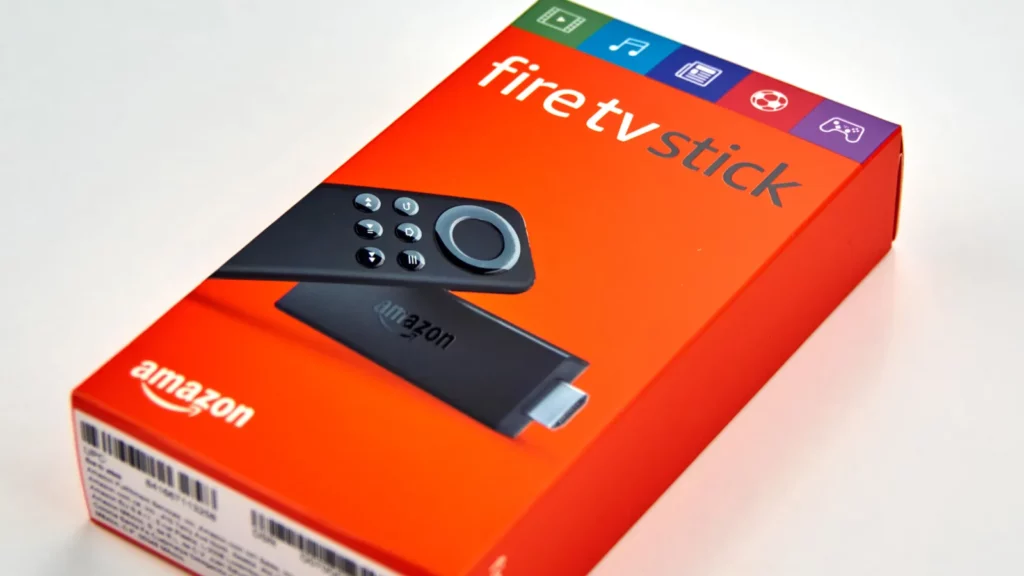
When a factory reset makes sense
A factory reset should not be the first solution, but it can help when accumulated software clutter becomes difficult to manage. The process removes installed apps, settings, and stored data.
After resetting, the Fire TV Stick returns to a cleaner state. Owners can then reinstall only the services they actually use, creating a lighter setup with fewer unnecessary processes.
However, a reset will not solve every issue. If the problem comes from weak Wi-Fi or aging hardware, the device may still need network improvements or an eventual upgrade.
Little-known fact: Amazon’s Fire TV device market share in the U.S. jumped 65% year-over-year in early 2025, adding millions more sticks to home networks.
Older Fire TV Stick models feel the impact most
Newer Fire TV Stick models generally include faster processors, improved wireless capabilities, and better memory management. These upgrades help newer devices handle the same Fire OS experience more comfortably.
Older models have fewer resources available for modern applications and interface features. As software evolves, older hardware often becomes more sensitive to storage limits and increased system demands.
This pattern is common across streaming devices. A small amount of available memory can make the difference between a responsive interface and one that feels delayed during daily use.
Why replacement is not always necessary
Many Fire TV Stick owners immediately consider buying new hardware when performance declines. In many cases, basic maintenance can restore enough speed for continued everyday streaming.
The most effective approach is to reduce the workload placed on the device. Clearing caches, removing unused apps, disabling autoplay, and improving wireless conditions address the main causes of slowdown.
A replacement may eventually make sense for very old models, but users should first determine whether the issue is due to resource management rather than hardware failure.
The bigger lesson for smart home devices
The Fire TV Stick slowdown problem reflects a wider trend in smart home technology. Compact devices often provide impressive features while operating with strict limits on processing power and storage.
As manufacturers add richer interfaces, recommendations, and connected services, these devices require more resources. Owners often notice the impact only after years of updates and accumulated usage.
Understanding those limits helps users maintain better performance. A device that appears outdated may simply need fewer background demands and a cleaner operating environment.
TL;DR
- Fire TV Stick lag often comes from accumulated software load, limited resources, and interface features rather than a single hardware defect.
- Disabling featured-content autoplay can reduce background activity and improve responsiveness on older or heavily used Fire TV Stick models.
- Clearing caches, removing unused apps, and restarting the device can recover performance by reducing unnecessary storage and processing demands.
- Weak Wi-Fi connections can create buffering problems that appear similar to device slowdowns but require different solutions.
- Factory resets provide a final cleanup option when software clutter remains after regular maintenance steps fail.
This article was made with AI assistance and human editing.
If you liked this, you might also like:
Trending Products

iRobot Roomba Plus 405 (G181) 2in1 ...

Tipdiy Robot Vacuum and Mop Combo,4...

iRobot Roomba 104 2in1 Vacuum &...

Tikom Robot Vacuum and Mop Cleaner ...

ILIFE Robot Vacuum

T2280+T2108

ILIFE V5s Pro Robot Vacuum and Mop ...

T2353111-T2126121

Lefant Robot Vacuum Cleaner M210, W...